By Mark R. · Updated 2026-08-22 · 12 min read

IPTV stands for Internet Protocol Television. Instead of receiving television through an antenna or a coax cable, your TV feed travels as data packets across the same broadband connection you use for browsing, Netflix, or video calls. A service provider hosts the channels, encodes the video, and sends it as a stream. Your player app decodes that stream and shows it on screen. The diagram above shows the full path: content source, IPTV server, internet connection, and playback device.
This guide is not a technology textbook. It is a practical walkthrough that answers “how does IPTV work” in real terms, then takes you through setup, verification, and troubleshooting step by step.
What You Will Accomplish by the End
By the time you finish these four steps, you will have a complete, practical understanding of IPTV. You will be able to:
- Explaining what IPTV is to someone else without using confusing technical jargon.
- Test your internet connection and know whether it can comfortably handle live channels and sports.
- Choose a reliable subscription provider and avoid counterfeit “too good to be true” deals.
- Set up IPTV on a smart TV, Android box, or Amazon Firestick using verified apps.
- Verify your playlist, EPG, and playback quality before you commit to a long plan.
- Troubleshoot buffering, missing channels, and login errors when things go sideways.
What You Need Before Starting
You do not need a satellite dish, a specialist technician, or a long-term contract. This is the complete checklist.
- Stable internet: Aim for at least 15–25 Mbps on the device that will stream. For 4K channels, a faster, wired connection is safer.
- A compatible device: Android TV, Firestick, smart TV that supports apps, a phone, or a PC. Most modern devices can run an IPTV player.
- An IPTV player app: IPTV Smarters Pro, TiviMate, or an IPTV/VOD player. You can also use VLC to test a direct playlist link.
- Subscription login data: This is usually an M3U playlist URL or Xtreme Codes: server address, username, and password.
- VPN (optional but recommended): Many users run IPTV through a VPN to avoid ISP throttling and improve connection stability.
- 15 minutes of patience: The setup itself is quick; the verification and small fixes take the rest of the time.
Step 1: Test the Connection and Optimize Your Network
If you skip this step, you might blame the provider for buffering. In reality, the internet line is the number-one cause of playback problems.
What to watch for here:
- Run a speed test from the same device you plan to use. Phone speed tests can be misleading because your Firestick or TV may have an older Wi-Fi antenna.
- Check latency and packet loss, not just “download speed.” Live TV sends a continuous packet stream. A flat 300 Mbps connection can still freeze if packets arrive irrupt and delay.
- Use Ethernet if possible. A simple CAT 5/6 cable between the router and device eliminates Wi-Fi drop, channel congestion, and most buffering complaints.
- Restart your router before the first run. Router routers hold memory leaks and stale routing tables. a 60-second reboot solves many cold-start problems.
- Enable QoS for streaming if your router supports it. QoS gives live-stream traffic a higher processing priority over downloads and browsing.
One common misunderstanding is that IPTV uses a different kind of connection, like a private channel or a Roku channel. It does not. A standard fiber or cable broadband plan works. The difference is in how the service is delivered — and that difference is why your network needs to be treated as part of the TV system.
Step 2: Choose the Provider and Install a Player App
The provider is the companion that operates the streaming gear and manages your access. It sends you the M3U, an internet link that lists the channel categories, logos, and stream locations.
Common mistake No. 1: choosing the provider before testing it.Legit operations give a 24-hour trial. They give you exactly the VPN, support it. A quality service lets you see channel bindings, the local sports category, and the video stability before you buy.
Common mistake 2: believing that “more channels” equals better, especially when it comes to the best iptv service for live sports. For sports you want stable frame rate and dedicated channels, not dozens of duplicates. Ask the support team about multi-connection, VOD libraries, and EPG coverage for sports channels, because that’s what defines the experience. If you are looking for the best IPTV live sports setup for yourself, remember that special tests must be included in the trial.
Once you have player interface, install the player app:
- Android TV / Smart TV: open the Play Store (or Samsung/LG app store depending on OS), search for “IPTV Smarters Pro” or “TiviMate”, then install.
- Firestick: go to Settings/My Fire TV/Developer options, enable “Install unknown apps”, install the Downloader app, and use it to pull the IPTV player APK.
- Phone or tablet: install the same app from the Apple App Store or Google Play store.
- PC: install VLC or, better, an IPTV-specific web layer. VLC accepts your M3U linkListener directly.
- Configure it: select Sign in by Xtream or M3U URL, enter the data sent by the provider, and click Load.
Even if you don’t set up IPTV on Firestick first, the same workflow works across Android boxes, smart TVs and, thanks to the standard SSH, almost any modern device.
Step 3: Set Up on Your Device And Optimise the Stream
Let’s trust the exact setup flow is where most confusion comes: you are not create a channel line-up; you are linking app to the server. The player downloads the channel list and gives it a button; when you select a channel, a stream URL opens in the player core and starts decoding.
How to set up IPTV on your Firestick: install Downloader, allow unknown apps, enter the URL code provided for IPTV Smarters/TiviMate, install and open, then click “Add a new user” and paste the credentials from your provider. Some players have the option Remote episode guide (EPG) — select it manually. That is why the app usually asks you for the EPG URL.
For a smart TV, the best experience is also Android Smart TV. Most smart TVs let you search in the built-in app store. If your TV does not have the app, use an external Android box: as long as the box runs Android, you have more app options and better code. On Samsung/LG, you can find a recommended IPTV app in the store, but you should install it to Apple TV if the device has one accessible account.

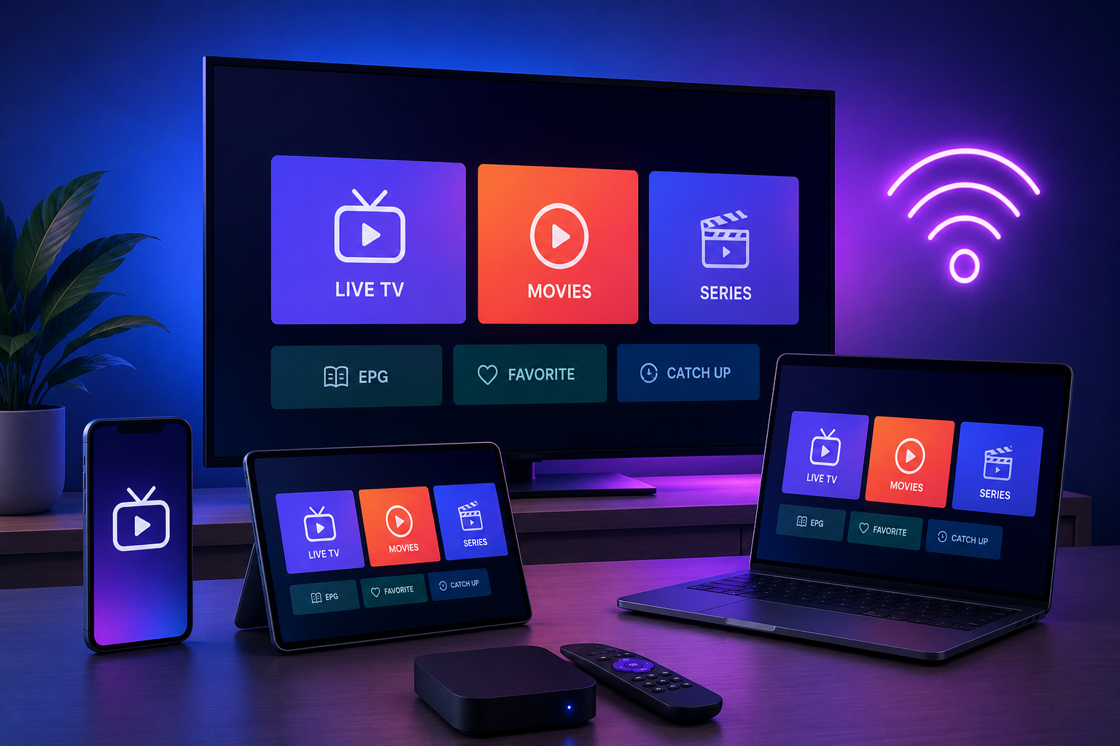
The screenshot above is the app running on an IPTV device, presenting a top-quality multi-view EPG. When you set up your player, make sure your plan and list include the same kind of EPG. EPG is the grid that shows what is currently playing and what comes next — crucial when you watch sports channels.
3 optimization tips for this step
- Raise the video buffer size in your player settings. A bigger buffer in TiviMate or IPTV Smarters gives the connection time to respond before the video freezes.
- Choose one device per connection or use the multi-connection feature. Extra simultaneous streams eat bandwidth.
- Set the EPG timezone. Programmes will not fit if your player’s timezone stays in UTC.
Step 4: Finalization and Verification
This last step is the so-called verification and hardening. Do not skip it; it’s what tells you whether your subscription is good enough or your network is under-provisioned.
- Watch a live channel for 5 minutes. You want steady frames, no freezing, no missing segments. Test at least one HD and one Full HD channel.
- Compare a channel from the VOD library. VOD is often from a different cluster. If it plays instantly and live doesn’t, your stream route latency is the issue.
- Check the EPG for upcoming two brands. Modern providers send 3-7 days of schedule. EP that shows “No information” can often be fixed by refreshing the app, but if the problem persists, the provider is weak.
- Verify the law again. How many simultaneous streams does your provider allow? If you watch on Firestick, answer that.
- Make note of the playlist URL and credentials in a safe place. It is your subscription. Do not share it in any public chat group, because providers limit concurrent viewing.
Once these five checks pass, you can honestly have a fully verified IPTV setup. From here on, every problem you meet can be handled by the steps below instead of playing the provider card.
Troubleshooting When Something Goes Wrong
All IPTV, regardless of the provider, they will eventually experience a moment of. Here’s how to use troubleshooting, a problem you know your pipeline:
That pipeline visual makes troubleshooting logical. Do not change the player before checking the network: the IPTV buffering fix guide always has follow the same order of testing.
- Buffering every 10 seconds. Go back to Step 1: test the wired network, restart the router, and lower the player’s quality until the stream stabilises. Buffer to IPTV buffers.
- One channel freezes and the rest work. That is not your network; it is the source of the channel. Wait a few minutes or switch to a No-click refund.
- EPG shows “No data”. Refresh the EPG, force stop the app, and ask. If your provider offers an alternate EPG URL, upload it. It often uses UTC + timezone.
- Wrong login/connection. IPTV apps expect the full “Xtream” data: server + username + password. Copy the server with http:// or https:// and no extra spaces.
-
A black screen but audio OK. Change the decoder in the app from “ML” to “EXO” or vice-versa
- ISP seems to block the stream. Several ISPs limit streaming at peak times. A neutral VPN often solves the problem by changing the network path.
- Apps fail to install on Firestick. Start with unknown apps, and use the “Downloader” alias with the correct APK link. Fire OS 8 sometimes also requires disabling “SmartDK”.
Summary Table: Four Steps in Order
IPTV vs Cable: Which is Better?
If you are still deciding whether to cancel your cable, the IPTV vs cable question is practical, not theoretical. The answer depends on how important your CEP and your image. Let’s compress often popular in the U.S. market.
✓ Benefits & Pros
Flexible tariffs and device enjoyment
Live shows, return viewing, VOD and multi-screen
Simpler installation and lower activation
Great international content packages
✗ Limitations & Cons
Buffering if your WiFi is weak or your bandwidth is low
Real monthly/annual packages do not exist
Many providers are gray-area offers
Stability depends on router and Power Supply
My recommendation for most beginners: if you want to cut cable, IPTV is the most fair the way for HD and for live sports. But not all products are equal. You can start with official or highly reviewed services, and always run a risk assessment according to the legality rule.
RECOMMENDED RESOURCE
how does iptv work
Compare premium stream configurations and promotional limits.
Check Out how does iptv work Deals →Legal Notes — IPTV in the US and Beyond
You will ask yourself “is IPTV legal in the US” sooner or later. The answer is actually complex because a direct translation.
First, IPTV itself is neutral technology. National networks, sleep services, sports channel apps and many official streaming services use IP-based distribution. Second, some unlicensed resellers/subscription services transmit copyrighted channels without offering. Those are the gray ethical zone. Often legal use: use the vehicle only for channels in public domain or official licensed content. If you pay for an unofficial service, you are responsible for what you see, because streaming is unauthorized. This article is informational, not legal advice.
Final Thoughts
If you have followed the steps, you now understand how IPTV works and you have it working on your connection. The chain is always: internet + server + player. When something goes wrong, keep the chain in mind.
Take it one step further: master the basics, check your network, test your provider before paying long-term, and use the category of the player interface. That’s the way to get real success without real gray in the terms: choose a premium source that gives you table support.
Unlock complete high-definition stream information instantly here.
Explore how does iptv work Plans →Featured Streaming Selected:
View the IPTV TV Smart Platform →Affiliate Disclosure: Clicking this secure link verified by our network supports our team through standard partnership terms at zero extra cost to your invoice.
Frequently Asked Questions
This article contains affiliate links. Our editorial analysis remains independent.