By Daniel R. · Updated 2026-08-13 · 14 min read

Your iptv box worked the first night. Channels opened instantly, the football pitch looked sharp, and you felt good about finally cutting the cable bill. Then a week later the same box starts buffering at kick-off, freezing in the third quarter, and occasionally dropping to a black screen that says “No Signal.” You tested your internet. It’s fast. So what is actually wrong?
Here’s the answer that forums rarely give you in one place: most iptv box problems are not a dead device and not a slow internet connection. They come from a hidden bottleneck in your network, an under-spec chipset that struggles to decode high-bitrate streams, or an IPTV provider that doesn’t have a good server route to your home. All three are fixable — but you first need to know which one you are fighting.
The setup in the image above is what most people start with: the box plugged into the television, the HDMI cable doing its job, and the Ethernet cable sitting there, still in its packaging. That cable is the first clue. This guide walks through the same diagnosis path that experienced IPTV users follow before they spend money on new hardware or another subscription.
The 3 Most Common Mistakes That Break an iptv box
1. The hardware is too weak for the streams you’re asking it to decode
Not every iptv box is built the same, even when the listing photos look identical. The “cheap iptv box with wifi” that seemed like a bargain often ships with 1 GB of RAM, 8 GB of storage, and an old Android build running on a low-end quad-core chip. That combination struggles with modern 1080p sports because the bitrate spikes exactly when the action speeds up — and the decoder drops frames, causing the stutter you see every weekend.
A genuine 4k iptv box review will talk about codec support, not just the number “4K” printed on the box. If the device can’t hardware-decode H.265/HEVC streams, the CPU runs hot and the picture freezes. You can check this quickly: open the IPTV player’s settings and switch between hardware and software decoding. If software decoding improves things, your hardware is the weak link.
2. WiFi is the hidden bottleneck
Most people test their internet speed on a phone, standing next to the router. The iptv box, however, sits inside the TV cabinet, two or three walls away, competing for airtime on the 2.4 GHz band with every other device in the apartment. IPTV doesn’t behave like a website. A web page can tolerate a second of delay; IPTV needs a sustained, consistent stream. One small dip in signal quality and you get a buffer event.
Experienced users phrase it bluntly: “Don’t blame the box if you haven’t plugged in the Ethernet cable.” If you can’t wire it, dedicate a 5 GHz band for streaming, keep the box within five or six meters of the router without solid walls in between, or add a mesh node in the same room.
3. The subscription is the real problem, not the box
This is the least comfortable possibility, but it is also the most common. The iptv box is only the player. The channel stream comes from a third-party IPTV provider. If that provider’s servers are overloaded, or the provider has no point of presence near your region, the connection will stall no matter how good the box is.
That explains why the exact same device runs perfectly at your friend’s house and stutters at yours. The fix is not to return the hardware — it’s to test a different provider with a trial period before committing to a subscription. A short 24-hour test tells you more than any specification sheet.
Why Restarting, Clearing Cache, and Factory Resets Usually Fail
The standard advice in every comment section is restart the router, clear the app cache, or factory reset the box. Those steps can help for a few hours because they flush expired DNS entries and let the device reconnect to a different server endpoint. But the underlying problem remains.
A restart does not upgrade a weak CPU. It does not improve radio reception from a cheap WiFi antenna. It does not change the route from your ISP to the provider’s server. And “update the app” fails for the same reason: a newer user interface cannot create RAM the hardware doesn’t have or bandwidth the line doesn’t deliver.
That is why the method below is different. It isolates each layer — the physical network, the player application, the provider, and the hardware — so you know exactly what needs to change.
What Experienced Users Do Differently
People who have run IPTV for years rarely argue in forums about which device is the “best iptv box for live sports.” Instead, they quietly follow the same set of habits:
- They choose hardware by chipset, not by product photos. Amlogic S905X4, S922X, or a similar capable SoC with at least 2 GB of RAM and a modern Android TV or Android 10+ build is the baseline.
- They connect with Ethernet on day one. They never rely on WiFi for live sports unless the signal is strong and dedicated to the box.
- They test a provider with a 24-hour trial before buying a month. If a provider does not offer a trial, they move on.
- They install a professional IPTV player like TiviMate or IProTV instead of the clunky app that came preinstalled on the box.
- They run a VPN when needed. Some ISPs throttle IPTV traffic patterns during peak hours; a VPN on the box or router removes that variable.
- They keep a second player installed as a fallback. Some provider streams only behave correctly in specific players due to codec and container differences.
How to Set Up an iptv box (and Fix Buffering, Freezes, or “No Signal”)
Work through these steps in order. Most cases resolve by step 4. The remaining ones are network or provider issues, and those become obvious by step 7.
Step 1: Measure the network from the box, not from your phone
Install an internet speed test app directly on the iptv box. The numbers that matter are not just the download figure — pay attention to ping and, especially, jitter. High jitter (above 15 ms) causes micro-buffers even when the average speed looks excellent. If the box’s own speed test shows under 25 Mbps for 1080p or under 50 Mbps for 4k, your local network needs work before anything else.
Step 2: Fix the WiFi or wire the box properly
Plug an Ethernet cable from the router into the box. If that is impossible, change the box’s WiFi setting from “automatic” to a dedicated 5 GHz network, or create a separate SSID on your router for streaming devices. If your router supports QoS, turn it on and give the iptv box high priority so downloads on other devices don’t eat into the same bandwidth.
Step 3: Give the box room to breathe — and a little storage headroom
If the iptv box case feels warm or hot to the touch, improve airflow around it. Thermal throttling is often misdiagnosed as buffering. Then clear the cache of your streaming apps, or insert a microSD card and set it as the default storage for EPG data and catch-up TV. A box running at 100% internal storage usage will stutter on any channel.
Step 4: Reinstall or switch the IPTV player
Uninstall the current IPTV app, clear its leftover cache, and reinstall the latest version from a trusted source. Alternatively, install a different player altogether — TiviMate, IProTV, or VLC as a quick test. If the same channel plays perfectly in one player and stutters in another, you have isolated a software or codec issue rather than a network one.
Step 5: Check the decoding settings
Inside the player settings, find the decoder option and toggle between hardware and software decoding. On a properly specced box, hardware decoding should be ON for smooth 4k playback. If hardware decoding crashes the app every time, the GPU driver is the culprit — which brings you to step 6.
Step 6: Update the firmware carefully
Check the Android version in System → About. If the box is stuck on Android 7 or 9, current IPTV player builds will eventually stop working properly. A stable Android 10 or Android 11 firmware update often resolves app compatibility issues. Do not flash random firmware from forums — install only the manufacturer’s official update file, because that is where most malware infections start.
Step 7: Use a VPN or change DNS to rule out ISP throttling
If everything works for 20 minutes and then buffers again, your ISP may be throttling IPTV traffic. Change the box’s DNS to 1.1.1.1 (Cloudflare) or 8.8.8.8 (Google) and test again. If the pattern returns, enable a VPN on the box and re-test. Many IPTV users run a VPN for privacy anyway; just make sure the content you access is legal in your region.
Realistic Results: What Should Improve After These Fixes
On a decent box with a healthy network and a reliable provider, you should see:
- Channel zapping starts within 1–3 seconds on local and regional channels.
- The EPG (TV guide) loads without an endless spinner.
- No more picture freezes during a typical 2–3 hour evening viewing session.
- Stable 4k playback on the channels the provider actually broadcasts in 4k.
If one specific channel still freezes after all this, the provider’s feed for that channel is the problem. Test it at a different time of day. If it fails every evening around 8 PM, it is server congestion, not your setup.
Pitfalls to Avoid Even After You Fix the Box
1. “Lifetime” subscriptions never last
Any provider selling unlimited lifetime access needs a constant flow of new subscribers to keep servers running. Many shut down after a few months. Prefer short payment cycles — monthly or quarterly — and consider the common “iptv box subscription no contract” model that most stable IPTV services use. If a provider demands a 12-month prepayment, treat it as a warning sign.
2. Don’t assume “iptv box vs firestick” ends in a tie
A Fire Stick can sideload IPTV apps, but Amazon’s OS restricts background processes, includes limited storage, and often introduces subtle playback stutters. For live sports and serious IPTV use, a dedicated Android TV box with an Ethernet port gives you better stability and full control over the player environment. Fire Stick still wins if your priority is official apps like Netflix and Prime Video.
3. Read the right part of a 4k iptv box review
Many cheap boxes advertise “4K” but only decode 4k on YouTube, not on IPTV streams. A trustworthy 4k iptv box review lists HEVC/H.265 10-bit support, the actual CPU model, and the Android version. If the review doesn’t mention those, it’s a marketing page, not a review.
4. “iptv box for multiple tvs” is usually a subscription question
If you want IPTV in more than one room, the hardware is not the constraint — the provider is. Many services limit simultaneous connections to one or two streams. Check the subscription terms before you buy three boxes and discover that only two rooms can watch at once.
5. Buy hardware from a source that can be held accountable
“Where to buy iptv box” is a more important question than most buyers realize. Big open marketplaces are full of clones with preloaded malware. Buy from a recognized electronics retailer or the manufacturer’s official store, and check the box immediately when it arrives — verify the Android version, storage, and CPU in the system settings rather than trusting the label.
Quick Reference: What Works vs What Does Not
The table below summarizes the decisions that determine whether an iptv box runs smoothly for years or becomes another drawer full of regret.
✓ Benefits & Pros
✓ Real pay-TV replacement at a fraction of the monthly cost
✓ More control than Amazon Fire Stick for third-party players
✓ Works with wired networks that make 4k sports genuinely stable
✓ No long-term contract if you choose the right provider
✗ Limitations & Cons
✗ Quality varies massively between cheap and competent hardware
✗ Requires a network setup that most buyers underestimate
✗ No official phone support from generic box manufacturers
✗ Legal status depends on the content and provider you choose
RECOMMENDED RESOURCE
iptv box
Compare model specifications and read independent network latency reviews before you choose a box.
Find Out More About iptv box →
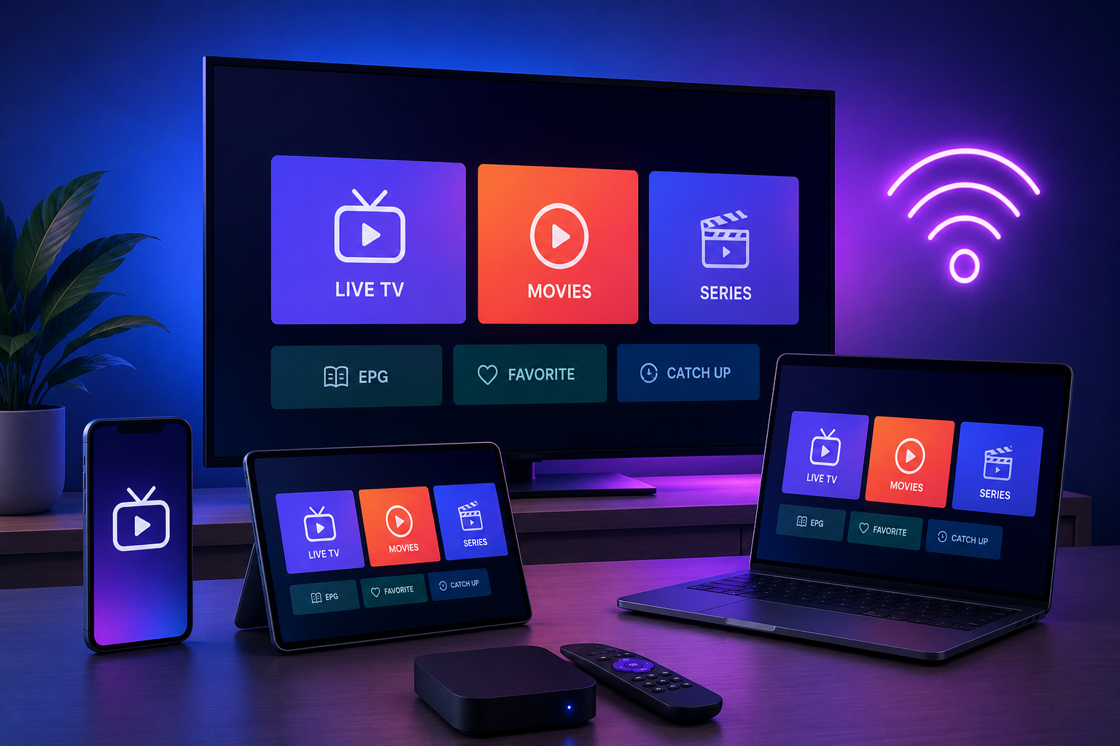
The player interface above is what a properly configured iptv box looks like in practice. Notice how the EPG and the channel list sit beside a live stream without lag. If your box turns this screen into a slideshow, the problem is almost never the “brand” — it’s the combination of chipset, network, and app you’re using.
Pro tip: when someone asks “where to buy iptv box,” the safest answer is a recognized electronics retailer with a genuine return policy. A box that looks identical in listing photos may hide a weaker CPU, less RAM, or an outdated Android build.
This path — ISP, router, box, television — is where every iptv box fix actually happens. Once you understand it, the structure of the whole system becomes easier to debug. The box is simply the decoder at the end of the chain. If you buy a high-quality device but still connect it over a congested 2.4 GHz WiFi band, the final picture will be exactly as unstable as that weak link allows.
The honest summary: an iptv box is worth keeping if the hardware decodes modern streams, the network is wired or genuinely stable, and the provider is tested with a trial before you commit. None of those steps require a huge budget. They require twenty minutes of methodical setup instead of ten minutes of blind hope.
Featured Streaming Selection:
Learn more about iptv box →Affiliate Disclosure: Clicking this secure link verified by our network supports our team through standard partnership terms at zero extra cost to your invoice.
Frequently Asked Questions
This article contains affiliate links. Our editorial analysis remains independent.